Even though the management of Cisco IOS devices, such as switches and routers, is usually performed via the CLI, these devices also support a WebUI that can be easily enabled. WebUI provides a GUI method of interacting with the device using your web browser.
雖然管理 Cisco IOS 裝置(例如交換器與路由器)通常透過 CLI 進行,但這些裝置也支援可輕鬆啟用的 WebUI。WebUI 提供一種以圖形化介面透過網頁瀏覽器與裝置互動的方式。
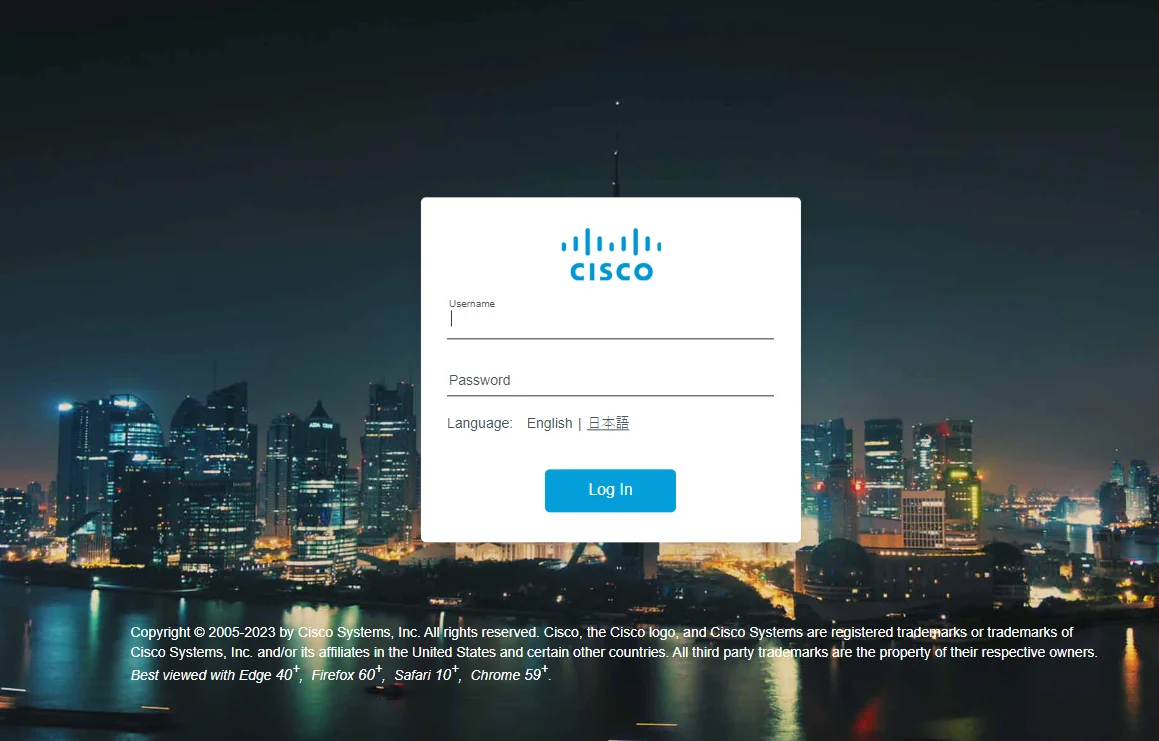
The Cisco IOS WebUI feature set differs between device types. Some devices, such as the Cisco Catalyst 9800 Wireless LAN Controller, allow you to completely configure your wireless network using the WebUI, while switches and routers might only support a few main configuration and monitoring options.
Cisco IOS WebUI 的功能集因裝置類型而異。有些裝置(例如 Cisco Catalyst 9800 無線 LAN 控制器)可讓您完全透過 WebUI 設定無線網路,而交換器與路由器可能只支援少數幾項主要的設定與監控選項。
Enabling Cisco IOS WebUI
啟用 Cisco IOS WebUI
Enabling the Cisco IOS WebUI is a straightforward process. The prerequisite is that the device already has an IP address and a configured username and password. After that, you simply need to start the HTTP and HTTPS servers and enable authentication.
啟用 Cisco IOS WebUI 的程序相當簡單。前提是裝置已具備 IP 位址,且已設定使用者名稱與密碼。之後,您只需要啟動 HTTP 與 HTTPS 伺服器並啟用驗證即可。
Once the WebUI is enabled, you can access it via your browser by navigating to https://device-ip-address. By default, the standard HTTP and HTTPS ports (80 and 443) are used.
啟用 WebUI 後,您可以透過瀏覽器連到 https://裝置 IP 位址來存取。預設情況下,會使用標準的 HTTP 與 HTTPS 連接埠(80 與 443)。
If you want to verify that the WebUI server is running using CLI, you can use the show ip http server status command.
若您想透過 CLI 確認 WebUI 伺服器是否正在執行,可以使用 show ip http server status 指令。
Cisco IOS WebUI Managebility Options
Cisco IOS WebUI 管理選項
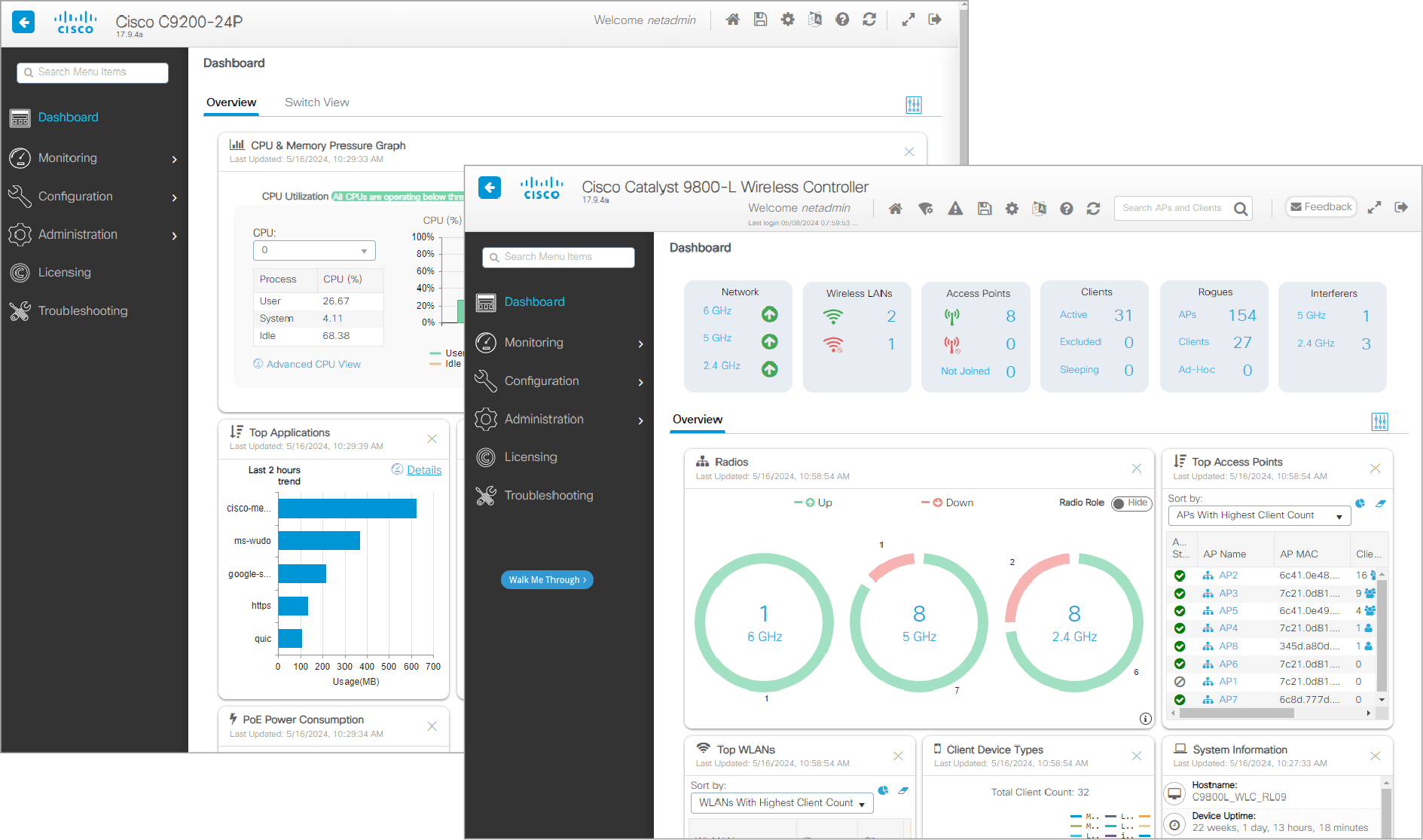
The Dashboard provides insight into the overall health and operation of your network device. While the dashboard can be customized, it will only support features specific to the device. For example, the Wireless LAN Controller (WLC) dashboard includes a widget for the number of active access points, whereas a switch dashboard includes a widget for Power Over Ethernet (PoE) consumption.
儀表板可讓您深入了解網路裝置的整體健康狀態與運作情形。雖然儀表板可以自訂,但只會支援該裝置特有的功能。例如,無線 LAN 控制器(WLC)的儀表板包含顯示啟用中無線基地台數量的小工具,而交換器的儀表板則包含乙太網路供電(PoE)耗電量的小工具。
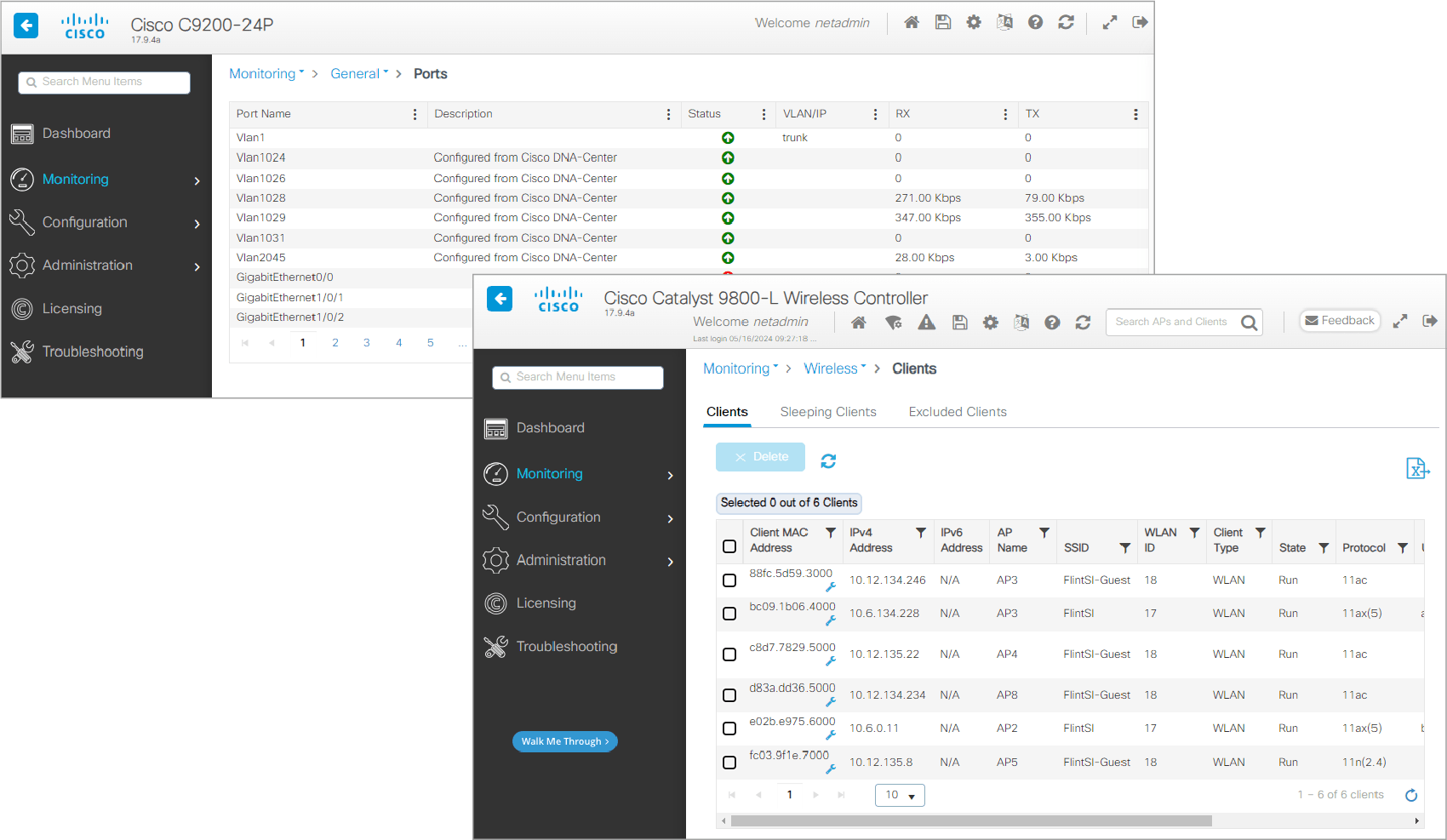
The Monitoring tab is useful for observing the operation of the device. The available monitoring options will vary depending on the device you are using. For instance, on a switch, you can monitor port status and traffic, while on a wireless controller, you can monitor wireless clients.
監控分頁用於觀察裝置的運作情形。可用的監控選項會依您所使用的裝置而異。例如,在交換器上可以監控連接埠狀態與流量,而在無線控制器上則可以監控無線用戶端。
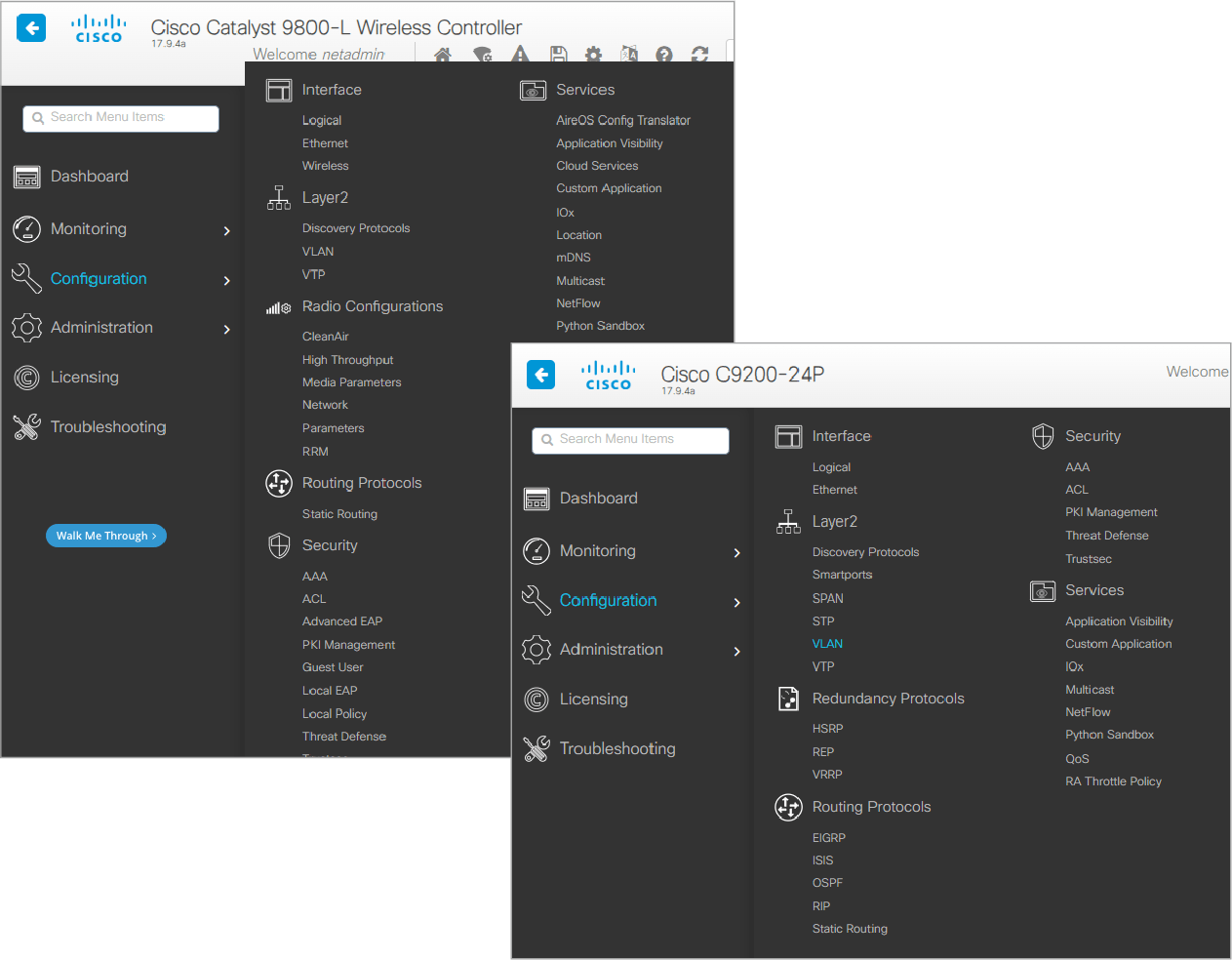
The Configuration tab is used for setting up your device. It serves as the WebUI equivalent of the CLI configure terminal mode.
設定分頁用於設定您的裝置,等同於 CLI 中 configure terminal 模式的 WebUI 版本。
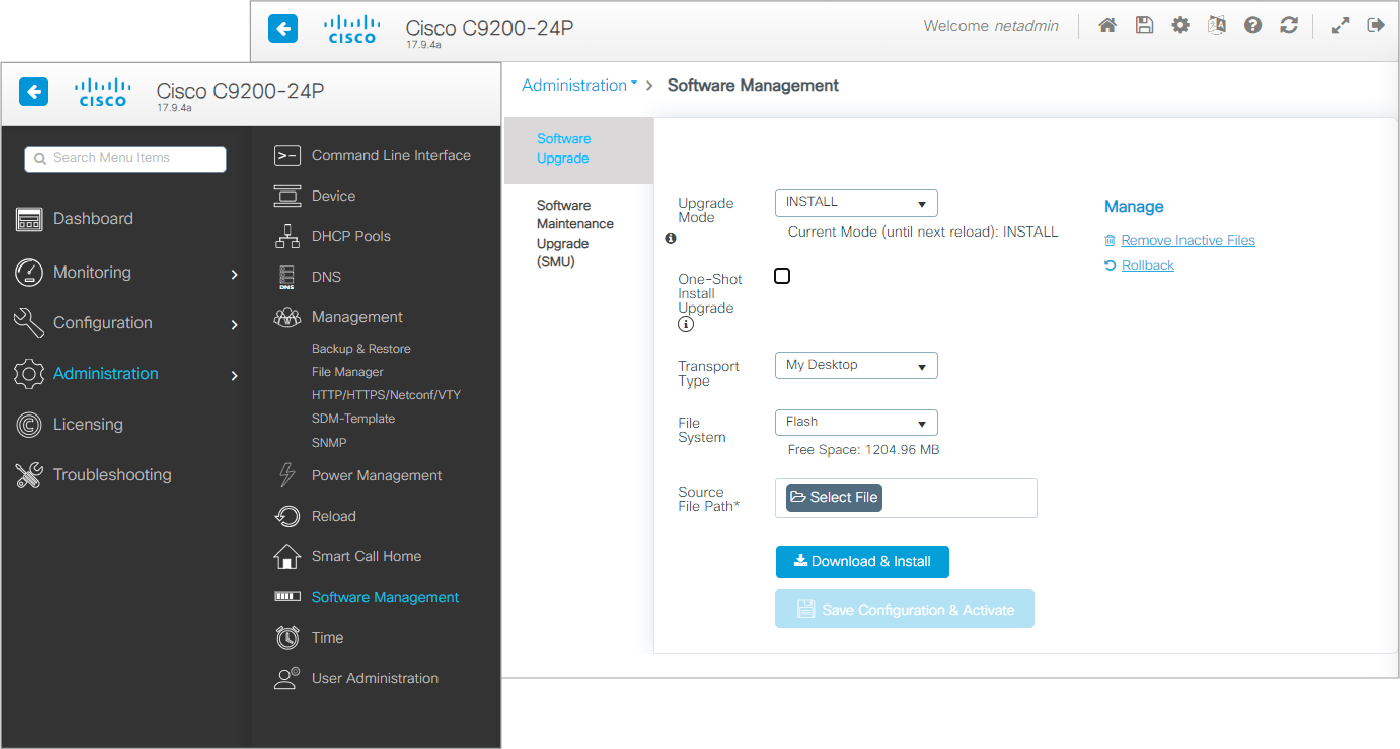
The Administration tab allows you to perform administrative tasks such as creating new users or upgrading the device's IOS image.
管理分頁可讓您執行管理工作,例如建立新使用者或升級裝置的 IOS 映像檔。
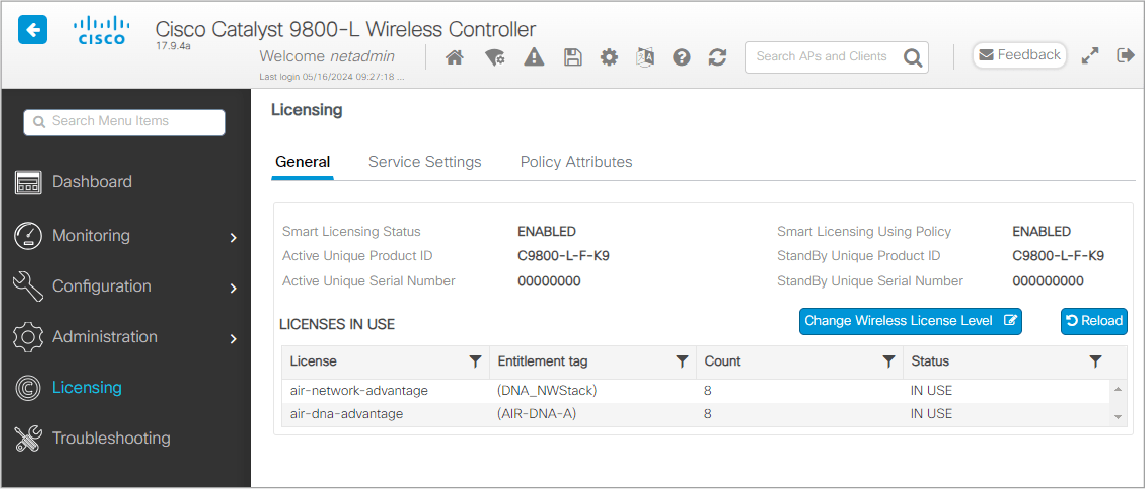
The Licensing tab is used to view the licenses of your device and change the license level.
授權分頁用於檢視裝置的授權,並變更授權等級。
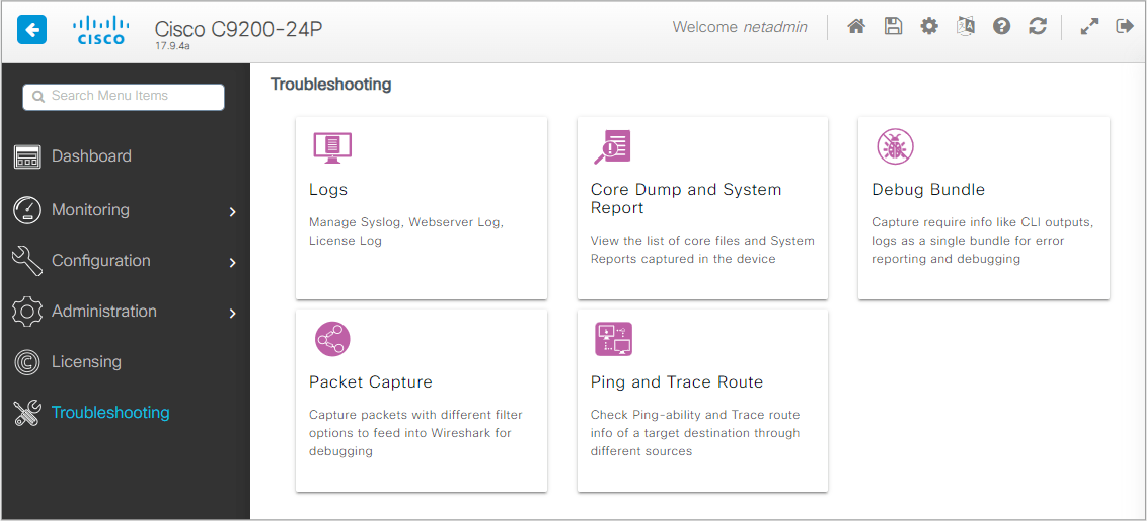
The Troubleshooting tab is designed for diagnosing issues with your device. Here, you can view logs, perform pings and traceroutes, and even capture packets to generate a packet capture (PCAP) file, which you can download and inspect using your preferred network analyzer, such as Wireshark.
疑難排解分頁專為診斷裝置問題而設計。在此,您可以檢視記錄、執行 ping 與 traceroute,甚至擷取封包以產生封包擷取(PCAP)檔案,供您下載並用偏好的網路分析工具(例如 Wireshark)加以檢視。
While most engineers still prefer using the CLI to configure network devices due to its robustness and comprehensive command set, the Cisco IOS WebUI offers an alternative method for device management. You can use both the CLI and Cisco IOS WebUI simultaneously, choosing the best tool for the task at hand. For example, configuring ACLs or VLANs may be more straightforward with the CLI, whereas monitoring events and upgrading the IOS image might be more conveniently done through the Cisco IOS WebUI.
雖然大多數工程師仍偏好使用 CLI 來設定網路裝置,因為它強大且指令集完整,但 Cisco IOS WebUI 提供了另一種裝置管理方式。您可以同時使用 CLI 與 Cisco IOS WebUI,依任務選擇最合適的工具。例如,設定 ACL 或 VLAN 可能用 CLI 更直接,而監控事件與升級 IOS 映像檔則可能透過 Cisco IOS WebUI 更方便。