Typically, before turning on a device, you need to plug it in. However, some Cisco switches do not have a power button, so when you plug them in, they power up automatically. Because of this fact, you should make sure that the console cable is connected and the terminal program is running before you plug in the switch for the first time. This preparation will allow you to monitor the boot process of the switch. As the switch powers on, it begins POST, which is a series of tests that run automatically to help ensure that the switch functions properly. Ensuring the switch passes POST is the first step of deploying a switch.
一般來說,在開啟裝置電源前,你需要先插上電源線。不過,部分 Cisco 交換器沒有電源開關,因此插上電源後便會自動開機。由於這個特性,你應在第一次插上交換器電源前,先確認主控台線已連接且終端機程式正在執行,以便監看交換器的開機過程。交換器開機時會開始執行 POST,這是一系列自動執行的測試,用以協助確認交換器功能正常。確保交換器通過 POST 是部署交換器的第一步。
When you need to examine how a switch is working or to verify its status and to troubleshoot any problems, you usually use commands from the Cisco IOS CLI. However, the switch hardware includes several LEDs that provide some status and troubleshooting information. Generally, when the Cisco switch is functioning normally, the LEDs are lit in green, and if there is a malfunction, the LEDs are lit in amber.
當你需要檢查交換器的運作狀況,或驗證其狀態並疑難排解問題時,通常會使用 Cisco IOS CLI 指令。不過,交換器硬體上也有多個 LED,可提供部分狀態與疑難排解資訊。一般而言,當 Cisco 交換器運作正常時,LED 會顯示綠色;若發生故障,則會顯示琥珀色。
The following figure shows the front of a typical Cisco switch. Displayed are LEDs on the left, one LED over each port, and a mode button.
下圖顯示典型 Cisco 交換器的正面,左側可看到 LED 指示燈,每個連接埠上方各有一個 LED,另外還有一個模式(mode)按鈕。
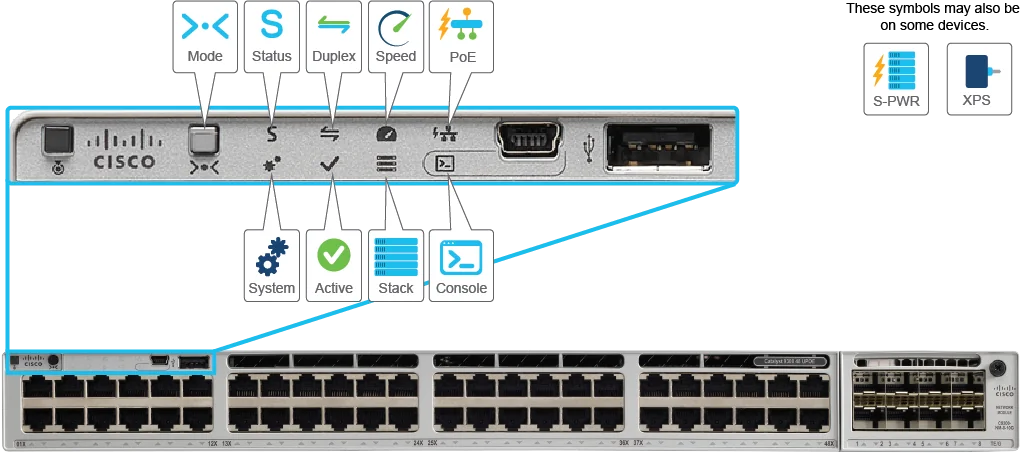
LED Status
LED 狀態
Name 名稱 | Description 說明 |
Status Status(狀態) | If on (green), each port LED represents the status of the port. If green, the link is present but there is no activity. If blinking green, the port is sending and receiving data. If amber, the port is blocked. 若亮起(綠色),每個連接埠 LED 代表該連接埠的狀態。若為綠色,表示連線存在但無活動;若為閃爍綠色,表示連接埠正在收發資料;若為琥珀色,表示連接埠已被阻斷。 |
Duplex Duplex(雙工) | If on (green), each port LED represents the duplex of this port (on is full-duplex; off means half-duplex). 若亮起(綠色),每個連接埠 LED 代表該連接埠的雙工模式(亮起表示全雙工;熄滅表示半雙工)。 |
Speed Speed(速度) | If on (green), each port LED represents the speed of this port, as follows: Off means 10 Mbps; Solid green means 100 Mbps; Single green flash means 1 Gbps. Blinking twice means >1Gbps. 若亮起(綠色),每個連接埠 LED 代表該連接埠的速度,如下:熄滅表示 10 Mbps;恆亮綠色表示 100 Mbps;單次綠色閃爍表示 1 Gbps;連續閃爍兩次表示 >1 Gbps。 |
Stack Stack(堆疊) | The stack LED shows the sequence of member switches in a stack. For example, if the second port LED is lit on the switch, the switch is the second switch in the stack. 堆疊 LED 顯示堆疊中成員交換器的順序。例如,若第二個連接埠 LED 亮起,表示此交換器是堆疊中的第二台交換器。 |
Power over Ethernet (PoE) 乙太網路供電(PoE) | Some switches have a PoE LED in the system status group of LEDs. If on (green), each port LED indicates if the port is supplying PoE. 部分交換器在系統狀態 LED 群組中設有 PoE LED。若亮起(綠色),每個連接埠 LED 表示該連接埠正在提供 PoE。 |
System System(系統) | If green, the system is operating normally. If blinking green, the system is loading the software. If amber, the system is not functioning properly. 若為綠色,表示系統運作正常;若為閃爍綠色,表示系統正在載入軟體;若為琥珀色,表示系統運作異常。 |
Active Active(作用中) | This shows the stacking state of the switch. Green if the switch is active or standalone switch, slow blinking green if it is in the stack standby mode. 顯示交換器的堆疊狀態。若交換器為作用中或獨立交換器,顯示綠色;若處於堆疊待命模式,顯示緩慢閃爍的綠色。 |
XPS XPS | This indicates eXpandable Power System (XPS) status, used to provide backup power to connected devices that experience a power supply failure. It shows green if it is ready to provide back-up power to the connected device. 表示可擴充電源系統(eXpandable Power System,XPS)的狀態,用於在連接裝置發生電源供應故障時提供備用電源。若準備好為連接裝置提供備用電源,則顯示綠色。 |
S-PWR S-PWR | Shows the status of StackPower Cable. If green, each StackPower port is connected to a neighboring switch, consisting a ring topology. If blinking green, only one StackPower cable is connected to the switch, resulting in open ring topology. 顯示 StackPower 線纜的狀態。若為綠色,表示每個 StackPower 連接埠皆已連接至相鄰交換器,形成環狀拓樸;若為閃爍綠色,表示只有一條 StackPower 線纜連接至該交換器,形成開放式環狀拓樸。 |
Console Console(主控台) | Shows the active USB Console port, this LED is off when the USB console is disabled. 顯示作用中的 USB 主控台連接埠;當 USB 主控台停用時,此 LED 熄滅。 |
Mode Mode(模式) | A button that cycles the meaning of the port through six states (Status, Speed, Duplex, Active, Stack, and PoE). 一個按鈕,可循環切換連接埠 LED 所代表的六種狀態(Status、Speed、Duplex、Active、Stack 與 PoE)。 |
Port Port(連接埠) | Displays different meanings, depending on the port. The mode is toggled by using the mode button. 依連接埠而顯示不同的意義,模式可透過模式按鈕切換。 |
To help make sense of the LEDs, consider the example of the System LED for a moment. This LED provides a quick overall status of the switch with three simple states on most Cisco switches:
為了幫助理解這些 LED,我們可以以 System LED 為例。在大多數 Cisco 交換器上,這個 LED 可透過三種簡單狀態快速顯示交換器的整體狀態:
- Off: The switch is not powered on.熄滅:交換器未開機。
- On (green): The switch is powered on and operational. Cisco IOS Software has been loaded.亮起(綠色):交換器已開機並正常運作,Cisco IOS 軟體已載入完成。
- On (amber): The switch POST process failed, and the Cisco IOS Software did not load.亮起(琥珀色):交換器的 POST 程序失敗,Cisco IOS 軟體未能載入。
| represents the overall system status.代表整體系統狀態。 | XPSXPS |
| represents the system readiness to provide back-up power to connected devices.代表系統為連接裝置提供備用電源的就緒程度。 | PortPort |
| cycles the meaning of the LEDs through four states (STAT, DUPLX, SPEED, and PoE).循環切換 LED 所代表的四種狀態(STAT、DUPLX、SPEED 與 PoE)。 | MODEMODE |
| has different meanings, depending on the port mode.依連接埠模式而有不同的意義。 | SYSTSYST |