All operating systems that are capable of TCP/IP communications include utilities for configuring, managing and monitoring the IPv4 networking configuration. Operating systems such as Microsoft Windows, Apple macOS, and most Linux variants have CLI and GUI tools.
所有支援 TCP/IP 通訊的作業系統,都內建了用於設定、管理及監控 IPv4 網路設定的公用程式。像 Microsoft Windows、Apple macOS 以及大多數 Linux 版本,都提供 CLI 及 GUI 工具。
Verifying IPv4 Address of a Host on Windows
在 Windows 上驗證主機的 IPv4 位址
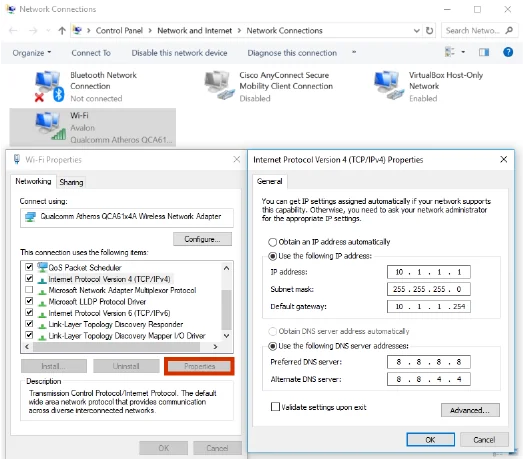
On a PC running Microsoft Windows 10, in the Network and Sharing Center you can view and set the IPv4 address associated with the network adapter by clicking Properties. In this example, the PC is manually configured with a static IPv4 address.
在執行 Microsoft Windows 10 的 PC 上,你可以在「網路和共用中心」中,透過點選內容來檢視並設定與網路介面卡相關聯的 IPv4 位址。在此範例中,該 PC 是以手動方式設定了靜態 IPv4 位址。
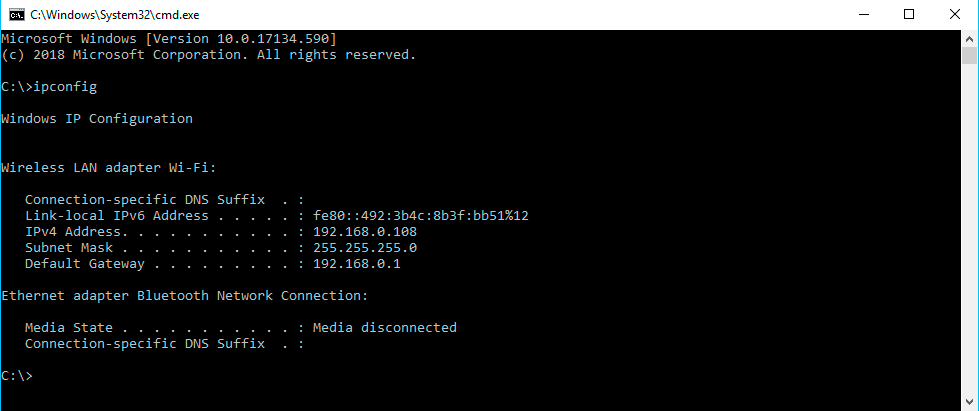
Use the ipconfig command to display all current TCP/IP network configuration values at the command line of a Windows computer.
使用 ipconfig 指令,可在 Windows 電腦的命令列中顯示目前所有的 TCP/IP 網路設定值。
Verifying the IPv4 Address of a Host on Apple Mac
在 Apple Mac 上驗證主機的 IPv4 位址
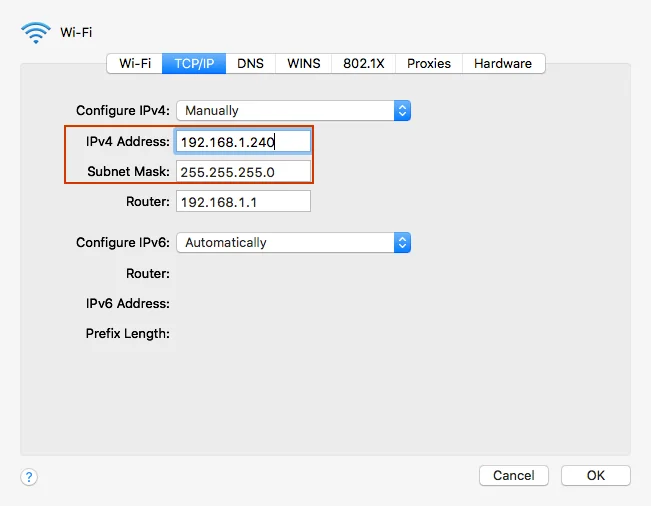
Just like in Windows, you can use either GUI or CLI to configure or verify your IP address settings on Apple macOS. To use the GUI option, click the Apple logo in the taskbar, choose System Preferences, and choose Network. A pop-up window will open, displaying your connections. Click the connection you want to manage, choose Advanced, and click the TCP/IP tab.
與 Windows 一樣,你可以在 Apple macOS 上使用 GUI 或 CLI 來設定或驗證你的 IP 位址設定。若要使用 GUI 選項,請點選工作列上的 Apple 標誌,選擇系統偏好設定,再選擇網路。系統會開啟一個彈出視窗,顯示你的連線。點選你要管理的連線,選擇進階,再點選TCP/IP分頁。
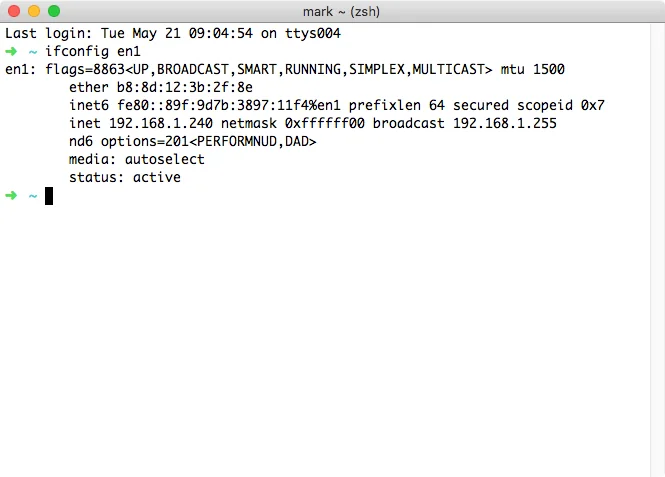
You can also acquire this information using a CLI. First, you will need to open the Terminal. You can do so in several ways, including using the Finder menu bar by choosing Go > Utilities > Terminal. Then, use the ifconfig {interface name} command to obtain the IPv4 address and other information.
你也可以使用 CLI 取得這項資訊。首先,你需要開啟終端機(Terminal)。你可以透過多種方式開啟,包括在 Finder 選單列中選擇前往 > 工具程式 > 終端機。接著,使用 ifconfig {介面名稱} 指令來取得 IPv4 位址及其他資訊。
Verifying the IPv4 Address of a Host on Linux
在 Linux 上驗證主機的 IPv4 位址
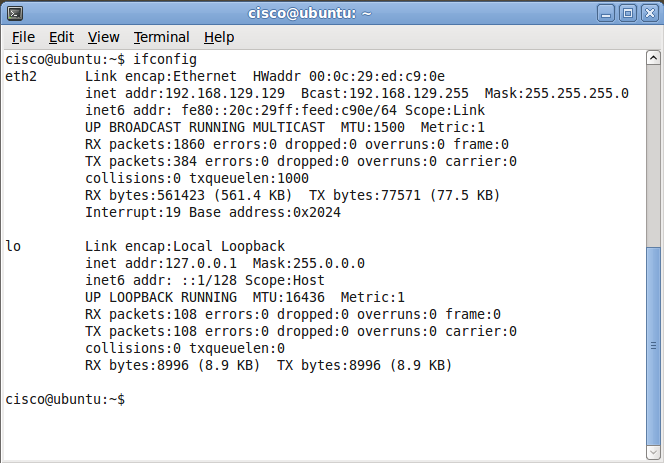
On most Linux operating systems, the ifconfig command performs the same tasks that ipconfig performs on Microsoft Windows operating systems.
在大多數 Linux 作業系統上,ifconfig 指令執行的工作與 Microsoft Windows 作業系統上的 ipconfig 指令相同。
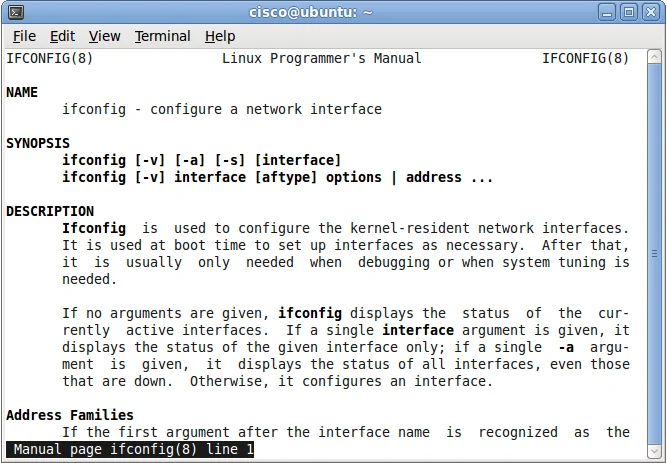
You can get the details of specific syntax on Linux systems for just about any command using the man (manual) command. In the following example, man ifconfig was entered.
在 Linux 系統上,你可以使用 man(手冊)指令查詢幾乎任何指令的詳細語法。在以下範例中,輸入了 man ifconfig。