Cisco IOS Software has various modes that are hierarchically structured. The highest hierarchy is the user EXEC mode. It is followed by the privileged EXEC mode. From the privileged EXEC mode, you can proceed to the global configuration mode and from there to more specific configuration modes such as interface configuration mode and router configuration mode, as shown below.
Cisco IOS 軟體有多種階層式結構的模式。最高階層是使用者執行模式,其次是特權執行模式。從特權執行模式,可以進入全域設定模式,再從那裡進入更特定的設定模式,例如介面設定模式與路由器設定模式,如下所示。
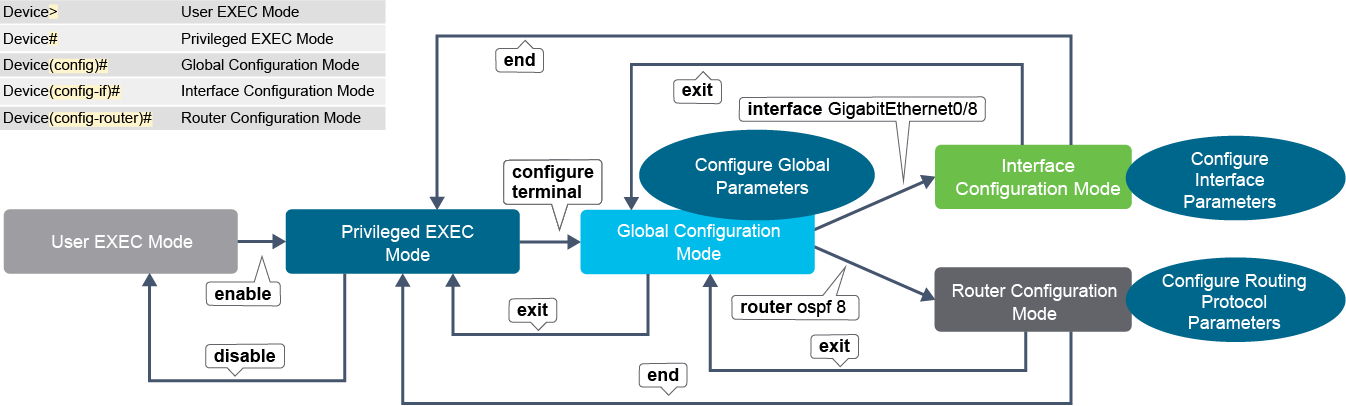
Because these modes have a hierarchy, you can only access a lower-level mode from a higher-level mode. For example, to access Global Configuration Mode, you must be in the Privileged EXEC mode. Each mode is used to accomplish particular tasks and has a specific set of commands that are available in this mode. Interface-specific configuration commands are available only in the Interface Configuration Mode. To access interface configuration commands, your full path through operation mode hierarchy would be: User EXEC Mode > Privileged EXEC Mode > Global Configuration Mode > Interface Configuration Mode. All commands that you enter and execute in Interface Configuration Mode apply only to the device interface you chose to configure.
因為這些模式具有階層關係,所以只能從較高層級的模式進入較低層級的模式。舉例來說,若要進入全域設定模式,必須先處於特權執行模式。每個模式用來完成特定工作,並擁有該模式下可用的特定指令集。介面專屬的設定指令只能在介面設定模式下使用。若要使用介面設定指令,完整的操作模式階層路徑為:使用者執行模式 > 特權執行模式 > 全域設定模式 > 介面設定模式。在介面設定模式下輸入並執行的所有指令,只會套用到你所選擇設定的裝置介面。
You can tell the operation mode that you are in by looking at the prompt at the beginning of the line. Normally when you connect to a device, you are allowed access to the User EXEC Mode. In User EXEC Mode, you can change the console connection settings, perform basic connectivity tests, and display system information, but you cannot configure the device. To leave the User EXEC Mode (to close the console connection), you can use either the logout, exit, or the quit commands.
你可以透過查看該行開頭的提示字元,得知目前所在的操作模式。一般來說,連線到裝置後,你會先進入使用者執行模式。在使用者執行模式下,你可以變更主控台連線設定、執行基本連線測試,並顯示系統資訊,但無法設定裝置。若要離開使用者執行模式(結束主控台連線),可以使用 logout、exit 或 quit 指令。
To move between the modes, you must use predefined commands. The following table offers an overview of basic IOS Software operation modes, commands or, methods to access and leave them, their prompt identifications, and a short description.
若要在各模式之間切換,必須使用預先定義的指令。下表概略說明基本的 IOS 軟體操作模式、進入與離開的指令或方法、其提示字元識別,以及簡短說明。
Mode 模式 | Access Method 進入方法 | Prompt Example 提示字元範例 | Exit Method 離開方法 | About This Mode 此模式說明 |
User EXEC Mode 使用者執行模式 | Begin a session with your device. 開始與裝置的連線工作階段。 | Switch> Switch> | Enter logout, exit, or quit.輸入 logout、exit 或 quit。 | Use this mode to change terminal settings, perform basic connectivity tests, or display system information. 使用此模式變更終端機設定、執行基本連線測試,或顯示系統資訊。 |
Privileged EXEC Mode 特權執行模式 | While in user EXEC mode, enter the enablecommand.在使用者執行模式下輸入 enable指令。 | Switch# Switch# | Enter disable orexit.輸入 disable 或exit。 | Use this mode to verify commands that you have entered and to enter configuration modes. Use a password to protect access to this mode. 使用此模式驗證你所輸入的指令,並進入設定模式。可用密碼保護此模式的存取。 |
Global Configuration Mode 全域設定模式 | While in privileged EXEC mode, enter the configure terminal command.在特權執行模式下輸入 configure terminal 指令。 | Switch(config)# Switch(config)# | To return to Privileged EXEC Mode, enter exitor end, or press Ctrl-Z.若要返回特權執行模式,輸入 exit或 end,或按下 Ctrl-Z。 | Use this mode to configure parameters that apply to the entire device. 使用此模式設定套用到整台裝置的參數。 |
Interface Configuration Mode 介面 設定模式 | While in global configuration mode, enter the interface command followed by interface label of the interface you wish to configure.在全域設定模式下輸入 interface 指令,後面接上想要設定的介面標籤。 | Switch(config-if)# Switch(config-if)# | To return to the Global Configuration Mode, type exit. Then to return to the Privileged EXEC mode, press Ctrl-Z or type exit or end.若要返回全域設定模式,輸入 exit。接著若要返回特權執行模式,按下 Ctrl-Z 或輸入 exit 或 end。 | Use this mode to configure parameters for the device interfaces. 使用此模式設定裝置介面的參數。 |
You do not have to return to global configuration mode in order to move to a different configuration mode. Rather, you can enter another configuration mode by typing the appropriate command at any configuration mode prompt. (Note: you will not be able to get any help for commands that are not valid at the prompt.)
你不必先回到全域設定模式才能切換到其他設定模式。事實上,你可以在任何設定模式提示字元下,直接輸入對應的指令進入另一個設定模式。(注意:在提示字元下輸入無效的指令時,將無法取得任何說明。)
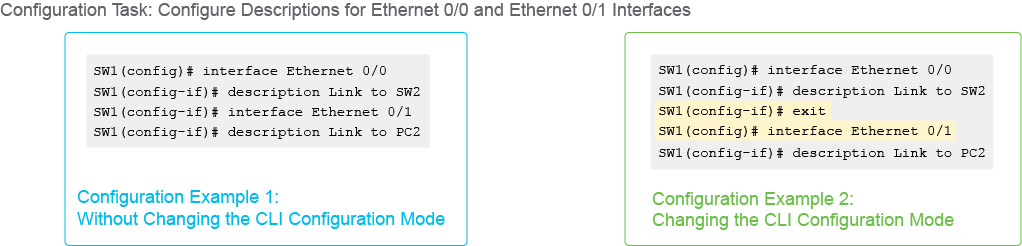
The figure shows two configuration examples, both performing the same task of providing descriptions for Ethernet 0/0 and Ethernet 0/1 interfaces. In the configuration on the left, the administrator started in the Global Configuration Mode and entered the Interface Configuration Mode by typing the command interface Ethernet 0/0. Note how the prompt changed from SW1(config)# to SW1(config-if)#. In the second line, the administrator typed the description command. In the next line, the administrator typed the interface Ethernet 0/1 command; this command causes the switch to enter Interface Configuration mode for the Ethernet 0/1 interface. Note that the prompt did not change because the prompt does not indicate the specific interface. The last line applies the description command to the Ethernet 0/1 interface. In the example on the right, the same configuration is performed, by exiting and re-entering the Interface Configuration Mode, as evident in the third and the fourth lines. Both are valid configurations and have the same results.
此圖顯示兩種設定範例,兩者都完成相同的工作,也就是為 Ethernet 0/0 與 Ethernet 0/1 介面加上說明。在左側的設定中,管理員從全域設定模式開始,輸入指令 interface Ethernet 0/0 進入介面設定模式。請注意提示字元如何從 SW1(config)# 變成 SW1(config-if)#。第二行中,管理員輸入了 description 指令。下一行,管理員輸入 interface Ethernet 0/1 指令,此指令使交換器進入 Ethernet 0/1 介面的介面設定模式。請注意提示字元並未改變,因為提示字元不會顯示特定介面。最後一行則將 description 指令套用到 Ethernet 0/1 介面。在右側的範例中,透過先離開再重新進入介面設定模式的方式,完成同樣的設定,如第三行與第四行所示。兩者都是有效的設定,且結果相同。